

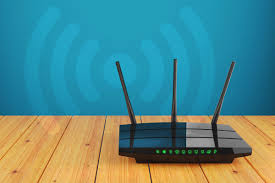
It is simple to find the router’s IP address by simply operating the setting options in computer, laptop or Smartphone by just opening the Internet setting page. After finding your IP address you need to open the settings page of router.
What exactly is IP address?
A network that operates silently in your gadgets including laptop, computer, Smartphone etc and give recognization to their identity is called IP address. In case if you have to undergo any kind of configuration changes in your computer or laptop or smartphone section, knowing the router’s IP address becomes compulsion. IP address is nothing but the default gateway for the any outside destination to current network.
All the gadgets that are connected to your network provide traffic to the IP address due to default settings. In windows it is regarded as a default gateway whereas in Android, Mac, Iphone, Ipad etc it is called router.
Why there is a need to know the IP address of your router?
No one check the Internet protocol address under a normal scenario and speaking honestly while writing this blog I too opened my IP address to check for the first time out of curiosity. My IP address was 192.168.1.254.
The need to know the IP address arrives when you come across any issues related to network or when you have to configure the software. These are the moments when you visit the internet settings of your gadget to know your IP address.
The way to locate the IP address is simple but it varies in different device.
Here is a simple guide to locate the IP address on Android Phones, Mac, IPad, Windows and other gadgets.
Steps to follow in Windows while locating IP address of the router you use:
- Go to the Window icon which is present in the extreme left point of the screen, right click on it and tap on the “Command Prompt” option.
- After clicking on it you need to type and enter ipconfig in capital letters (IPCONFIG).
- Go to the Default Gateway segment and the number that reflects there will be your IP address.
Steps to follow in Mac while locating IP address of the router you use:
- An Apple icon will can be seen on the extreme left at the top side of your Mac Screen, click there and select the option “System Preference.”
- After that you need to click on the option “Network.”
- Go to the extreme left side of the screen that has open, click on the network and after that click on the option “Advanced.” This option can be seen on the extreme right at the lower part of the screen.
- You will get TC/IP on your screen. Click on it. Your router’s IP address will be reflected under the router column.
Steps to follow in IPad or Iphone while locating IP address of the router you use:
- You need to click to the wi-fi option that is present on the settings
- Once when you move to the page of Wi-Fi, click on the network of Wi-Fi that you are attached to.
- Thereafter you need to move to the segment of “IPV4 ADDRESS.” You will find router option and there you can locate router IP address.
Steps to follow in Android Phones while locating IP address of the router you use:
Here honestly one may not find any built up tool or any particular steps to follow to locate the IP address of the router but some of the extremely technical Smartphones may have some customized interfaces. It is always easy to locate the router IP address if you try it through Computer or laptop.
One can also install Wi-Fi analyzer to locate the router IP address.
Steps to follow in Chrome OS while locating IP address of the router you use:
People who are using Chromebook they need to follow some simple steps:
- In the taskbar section click on the right side that reflects notification area.
- Thereafter click to the Network name which is reflected in “Connected to” option. It will be in the list that will simply pop in once you will click there.
- A name will appear under wireless network, click on it.
- After that click on Network option ant the router’s IP address will be seen under Gateway.


